Wednesday, September 10, 2014

Optimization Of Resources - Using Excel Solver To Aid Decision Making

When an Excel data model is created and some cells require input from the user, the scenario outcome can change for better or worse. Here is a simple example of an organic baked goods production model where there are constrained resources available to make apple pies, boxes of cookies and cinnamon buns.

The limited available organic ingredients for tomorrow’s production is 350 cups of sugar, 450 cups of flour and 400 cups of butter.

An apple pie requires 1 cup of sugar, 0.5 cups of flour and 1 cup of butter. A minimum of 10 pies must be made to fill the shelf and each pie produces $1.00 of profit.

A box of cookies requires 2 cups of sugar, 4 cups of flour and 1 cup of butter. A minimum of 30 boxes must be produced and each box yields $5.00 of profit.

A box of cinnamon buns requires 1 cup of sugar, 3 cups of flour and 2 cups of butter. A minimum of 15 boxes is required and each will produce $4.00 in profit.

Setting Up The Model


The decision to be made is how many apple pies, boxes of cookies and cinnamon rolls to produce. These decisions are input by the user in the yellow cells C2:E2. In order to respect the minimum presentation requirement, these production numbers should be at least as big as the values in cells C4:E4. Cells C6:E8 detail how many cups of each organic ingredient are required to produce one unit of each baked good. The values in cells C10:E12 multiply the per-unit ingredient requirements by the number of units to produce in cells C2:E2 (40 boxes of cookies require 80 cups of sugar, 160 cups of flour and 80 cups of butter). Cells C14:E14 displays the per-unit profit of each baked good and C15:E15 multiplies these values by the number of units produced. Since there are only 350 cups of sugar available, this maximum is displayed in cell I10 alongside the total sugar consumed by the three products in G10. Cells G11:I12 display the cups of flour and butter used as well as the cups available.

The Initial Solutions

With a production schedule of 20 apple pies, 40 boxes of cookies and 30 cinnamon rolls, the presentation requirements are met, the three constrained ingredients are available and $340 of profit is earned.

Of course, more profit could be earned if additional baked goods are produced, but how many units of each should be added to yield the greatest profit? Since cookies have the highest profit per unit, we can change the production to 70 units. Cinnamon rolls also produce a good profit but use less flour, maybe we should increase production to 50 units. At this point we are constrained on flour and can only make a total of 40 apple pies. All of the flour has been used up but sugar and butter are still available while the profit earned is $590. Is there another solution that makes better use of the ingredients and yields more profit?

Excel Solver

This is a type of problem that is difficult to solve using trial and error but simple with Excel’s Solver Add-In. The Solver button appears in the Data tab of Excel’s ribbon. If you don’t see the Solver button, you need to enable the Add-In. Click on the File Tab then select Options and when the Excel Options dialog appears, select the Add-Ins tab. Click on the Go button to bring up a menu of Add-Ins that can be enabled or disabled, check the box for the Solver Add-In then click on OK. The Solver Add-In should be added to the Data tab in Excel, if not then quit Excel and open the Excel application again.

The Optimal Production Schedule

Click on the Solver button to set up the optimization model. The Set Objective box should be cell G15 and the To button should be Max because we want to maximize the value in cell G15, the total profit. The By Changing Variable Cells box should be cells C2:E2, the decision input cells that can
change their values. Next, click the Add button to make the Add Constraint dialog box appear. The Cell Reference of C2:E2 should be set to greater than or equal to the Constraint of C4:E4. Notice that three constraints are being specified at once instead of one cell at a time. Click Add to add another constraint. The next constraint is that G10:G12 should be less than or equal to I10:I12. The last constraint is the fact that C2:E2 must be integers; we can’t create half of a pie. In order to set this constraint, the Cell Reference is C2:E2 and the drop-down menu is set to “int” (which will then place the word “integer” in the Constraint box). Click OK to close the Add Constraint dialog box. The Solver model is ready to choose the optimal solution, so click the Solve button and when the solution is ready, click OK to return to the model.

The Optimal Solution


Excel Solver has found an interesting solution where 216 apple pies, 30 boxes of cookies and 74 cinnamon rolls are made. This solution makes good use of the ingredients as only 6 cups of butter will remain. The profit of this solution is $662, higher than what we could likely produce with trial and error. It seems counterintuitive that production of the highest per-unit profit item (cookies) is low but that makes sense considering that cookies use more flour than the other baked goods. If making 216 apple pies is unreasonable and risks spoilage, a new constraint could be added to this model that specifies a maximum level of production for each baked good.

Whether you need to allocate different products to stores at varying prices or allocate hours to employees with varying wage costs and sales performance, models such as this one can be created to maximize profits or minimize costs given a set of constraints.

If you have any questions for future articles, would like to know more about using Solver, Excel, VBA, Charts, need a dashboard, data model, database solution or analytics training, please contact Scott Cuthbertson:

Email: scottjcuthbertson@gmail.com
LinkedIn: http://ca.linkedin.com/in/scottcuthbertson
Blog: http://theanalyticspro.blogspot.ca/

Scott Cuthbertson BBA

Scott is an Analytics Professional who has worked with over 100 clients in the retail and financial services industries. He has helped organizations improve their labour scheduling, inventory replenishment, performance management, organization design and pricing. He has been a practitioner of analytics since childhood, using data models to win Hockey Pools. His expertise lies in developing data models, reporting, algorithms and solutions for any organization that wants to use their data to improve decision making. He also teaches at the CMA Professional Development Institute.

© Scott Cuthbertson 2014 Blog: Words From The Analytics Pro


Saturday, July 19, 2014

SELECT FROM WHERE? - SQL for Business Professionals

The language of databases is SQL (pronounced Ess-Cue-Elle) – Structured Query Language. Being able to have a basic conversation in this language allows you to engage with the world’s databases and those who create and maintain them. Every year, more of the world’s business data is stored in tables. To discover the patterns and insights buried in the data, queries can be written in SQL to ask a question that the database will answer.

Once the exclusive domain of Database Developers, Database Administrators and Information Technology Professionals, SQL is now being used by more business professionals to have a competitive edge and direct access to databases. Direct access allows data analysis to occur organically as business questions are answered immediately, probably generating deeper questions.

I used to write SQL statements in the 1990’s and the great thing about SQL is that those same statements still work today. SQL is a very stable language across time, which is welcome when technology is constantly changing. Also, since SQL is also the most widely used method of communicating with databases, the same SQL statement can often work across different databases (Microsoft Access, SQL Server, Oracle…).. However, in more complex queries, small changes in syntax may be required.

When there is a lot of data, Excel won’t be nearly as fast as SQL at manipulating and summarizing data to yield insights. Excel is better for working with the results of a SQL query.

The best part about SQL is that it is really easy to learn. A sample query will illustrate the basic syntax of asking “How many recent orders contain more than one product, can you show me those orders?”

SELECT OrderID, COUNT(ProductID), SUM(UnitQuantity)
FROM tblOrderDetails
WHERE OrderID>=17239
GROUP BY OrderID
HAVING COUNT(ProductID)>1
ORDER BY SUM(UnitQuantity) DESC

The FROM Clause

Even though the SELECT clause is written first, we start with the FROM clause to understand the query. The FROM clause indicates where the data is coming from. In this case it is a table called “tblOrderDetails” which contains data about each product on each order a company fulfills. The picture below shows some sample records from the table. Each row in this table represents one product from one order and will contain data elements such as: Order Identification Number, Product Ordered, Unit Quantity of Product, Extended Cost of Units and Extended Price of Units. More complex queries will combine data from multiple tables.


The WHERE Clause

Once we know where the data is coming from, we can filter the individual records to exclude orders we don’t want and include orders we do. In this query we want the most recent orders; those with an order identification number of 17239 or greater. All the records with lower order identification numbers are discarded at this point.

The GROUP BY Clause

Now that only some of the rows have survived to this point, it is time to summarize these records. I think that GROUP BY is the most powerful clause in SQL because it has the power to summarize many records into a total. In this query, we want to create a summary group for each order identification number. Order number 17239 has three products ordered and therefore three records in the table. These three records will be aggregated to one row at the order level so that we can later count the number of products (3) and sum the unit quantity (14).

The HAVING Clause

The HAVING clause is similar to the WHERE clause, it is a filter. The difference is that the WHERE clause was fed individual records from a table and HAVING is fed summarized groups (one row per order). HAVING occurs after the GROUP BY clause, so at this point, summary groups are created and we can filter out summary groups that we want to exclude. In this query, we want to keep the orders that have more than one product ordered. Any groups with only one product ordered are now discarded from the result (such as order numbers 17240 and 17241).

The ORDER BY Clause

Now that we know which groups will appear in the final result, we can present them with a certain sort order. In this query, we are going to perform a descending sort on the sum of unit quantity for each order. This means that the order with the most units will appear as the first row and the order with the fewest units will appear at the bottom.

The SELECT Clause

Now that the groups are created and sorted, we can choose which columns will be returned in the result. In this query we want to see the order identification number, followed by the count of the number of products and the sum of the units for that order.

Upcoming Course

If you would like to know more about using SQL to interact with databases, I teach a one-day course called: Introduction to SQL for Finance Professionals. The course goes into much greater detail and will have you writing SQL and returning results from databases. Join me at the Certified Management Accountants Professional Development Institute.

If you are interested in learning about Excel, VBA, Charts, need a dashboard, data model, database solution or analytics training, please contact Scott Cuthbertson:

Email: scottjcuthbertson@gmail.com
LinkedIn: http://ca.linkedin.com/in/scottcuthbertson
Blog: http://theanalyticspro.blogspot.ca/

Scott Cuthbertson BBA

Scott is an Analytics Professional who has worked with over 100 clients in the retail and financial services industries. He has helped organizations improve their labour scheduling, inventory replenishment, performance management, organization design and pricing. He has been a practitioner of analytics since childhood, using data models to win Hockey Pools. His expertise lies in developing data models, reporting, algorithms and solutions for any organization that wants to use their data to improve decision making. He also teaches at the CMA Professional Development Institute.

© Scott Cuthbertson 2014 Blog: Words From The Analytics Pro


Saturday, June 14, 2014

Creating Excel Charts Using VBA - A Picture Is Worth 1,000 Words

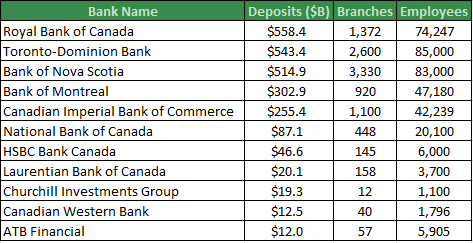
Most people struggle to see the patterns and relationships present when looking at a table of data. For example, take a look at this table which details the deposits, branches and employees for some Canadian Banks. Without spending too much time scrutinizing the numbers, can you tell which banks are the most similar?


Using A Chart To Visualize The Data

If you want to effectively communicate a message to an audience, a chart can let the data quickly speak for itself. A basic Excel scatter chart with branches on the vertical axis and employees on the horizontal axis will give you a better idea of which banks are most similar. Unfortunately, we can’t easily tell which bank is which and deposits have not been reflected in the chart.


Formatting the chart as a bubble chart will make the visualization more presentable. This chart not only shows the number of branches and employees for each bank, but the size of the logo indicates the magnitude of the deposits. This chart quickly conveys the relationships and patterns of three variables. Now you can group similar banks together instantly.


Building Charts With Excel Visual Basic For Applications (VBA)

This chart was built using VBA but it could have been created manually. For this particular chart, writing the code and building the chart manually may take about the same amount of time, but coding offers advantages. First, the code can be reused to create similar charts without having to rebuild the chart manually. Second, there were only 11 points on the chart, but if there were more points, it would take too long to build manually.

Animating Benchmarking Charts

One of the more popular charts I have offered clients is the Benchmarking Chart. It is a good visualization for comparing a company or employee to peers along several metrics. This chart can be created manually or using VBA. However, if you want to see this chart progress from period 1 through 12 automatically, you will need to create a motion chart using VBA.

Upcoming Course

If you would like to know more about using Excel VBA code to create charts, I will be teaching a one-day course called: Microsoft Excel VBA – Focus on Charts & Visualizations. Join me at the Certified Management Accountants Professional Development Institute. The charts above will be covered in the course and will give you the foundation to invent new charts to communicate your messages.

To give you an idea of what is possible after practicing Excel charting with VBA, here are some examples of complex charts which are only feasible with VBA.


If you are interested in learning more about Excel charts or VBA, need a data model, a database solution or analytics training, please contact Scott Cuthbertson:

Email: scottjcuthbertson@gmail.com
LinkedIn: http://ca.linkedin.com/in/scottcuthbertson
Blog: http://theanalyticspro.blogspot.ca/

Scott Cuthbertson BBA

Scott is an Analytics Professional who has worked with over 100 clients in the retail and financial services industries. He has helped organizations improve their labour scheduling, inventory replenishment, performance management, organization design and pricing. He has been a practitioner of analytics since childhood, using data models to win Hockey Pools. His expertise lies in developing data models, reporting, algorithms and solutions for any organization that wants to use their data to improve decision making. He also teaches at the CMA Professional Development Institute.

© Scott Cuthbertson 2014 Blog: Words From The Analytics Pro

Monday, May 19, 2014

Why is my VLOOKUP not working? - Four Opportunities To Improve Your VLOOKUP

This past week at a client site, I was asked a question that I have heard numerous times: Why is my VLOOKUP not working? I have seen issues with all of the four arguments required by this function and each presents an opportunity to improve your data model.

lookup_value

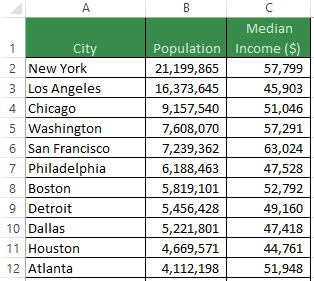
I will keep the data set simple: population and median income for each city in the United States. This data set contains 503 cities.

Elsewhere in this spreadsheet, we need to lookup the population and median income of two cities: Buffalo and Hartford.

The text “Buffalo” is located in cell L2 and the VLOOKUP function to lookup the population will be written in cell M2.

The formula can be written as:
=VLOOKUP(L2,A2:C504,2,FALSE)

The first argument in the function is the lookup_value and represents what we want to look for. In this case we are looking for “Buffalo” which is in cell L2.

The second argument is table_array and represents the data source for retrieving the population of Buffalo. The table_array is in cells A2 to C504.

The third argument is col_index_num and represents which column in the table_array to return as our result. The population is in the second column, so we specify a value of 2.

The fourth argument is range_lookup and accepts values of TRUE (1) or FALSE (0). FALSE is “exact match” and only allows an exact match of Buffalo to return a result. TRUE is “approximate match” and will return the closest value to Buffalo if the table_array is sorted in the first column (City, from A to Z).

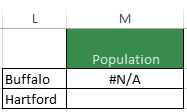
Here is the result of the formula, an #N/A error. The problem is that in cell L2, there is a space character after “Buffalo”. This is a common problem that is harder to find when many VLOOKUP functions are written. An easy way to resolve this issue in the lookup_value argument is with the TRIM function, which will remove all spaces from a string except for single spaces between words. The formula should be rewritten as:
=VLOOKUP(TRIM(L2),A2:C504,2,FALSE)


table_array

This formula in cell M2 can now be copied and pasted down one cell to M3. The resulting formula is:
=VLOOKUP(TRIM(L3),A3:C505,2,FALSE)

This formula returns the correct result for Hartford, but the table_array is no longer correct. The data source is now cells A3 to C505. New York is no longer in the table_array and every time this formula gets pasted one row further down, another city will be removed. To improve the table_array argument, add $ symbols to make it an absolute reference.
=VLOOKUP(TRIM(L3),$A$2:$C$504,2,FALSE)

Now the table_array will always remain the same. Unfortunately, if you add data to the bottom of the table starting in row 505, it won’t be visible to the function. Therefore, another way to write this formula is by using entire columns instead of specifying rows:
=VLOOKUP(TRIM(L3),$A:$C,2,FALSE)

This formula will copy and paste downwards without losing any data and also allows the data to grow.

col_index_num

The third argument is typically hardcoded as a number, in our case the second column is represented by a 2. There are two common issues created by hardcoding column references.

The first issue is what happens when you insert a column inside your table_array cell range. The State for each city has been added to the data and the Population is no longer in column 2, it is now in column 3. Excel does not update the VLOOKUP function because the col_index_num argument has been hardcoded. The Population lookup is now returning State instead because that is what appears in column 2.


The second issue is what happens when you copy and paste the formula in cell M2 to the right. If we want to add a VLOOKUP of Median Income in column N then we should add a $ symbol to the lookup_value ($L2):
=VLOOKUP(TRIM($L2),$A:$C,2,FALSE).


When this formula is copied and pasted to the right, nothing in the formula changes, so we have to manually change the col_index_num to 3. If we had more columns in our table_array such as Crime Rate or Unemployment Rate, we would copy and paste this formula to the right two more times and have to manually enter the col_index_num. For dozens of columns, this takes too long and is a risk for errors.

To fortify the col_index_num argument and solve both of these issues, use the COLUMNS function, which will count the number of columns in the cell range it is fed.

Replace the hardcoded value of 2 in the col_index_num argument with COLUMNS($A2:B2) which will evaluate to 2 (the number of columns in the range $A2:B2). The lookup in cell M2 for Buffalo’s population should be: =VLOOKUP(TRIM($L2),$A:$C,COLUMNS($A2:B2),FALSE)

When this formula is copied and pasted to the right, it becomes
=VLOOKUP(TRIM($L2),$A:$C,COLUMNS($A2:C2),FALSE) and the col_index_num now evaluates to 3. The range expands when pasted to the right. Furthermore, when the State column is inserted into the table_array, the col_index_num will also expand and return the correct result.

range_lookup

For just a few VLOOKUP functions, I would recommend using exact match (FALSE or 0) for the range_lookup argument because successful lookups will return the correct result and if the city is not found, an #N/A error is returned. However, if there are thousands of VLOOKUP functions in a data model and the table_array has a large number of rows, it will take a long time to recalculate the workbook. A significant performance boost is achieved by changing the range_lookup argument to approximate match (TRUE or 1). In order to do this, you must sort your table_array by the first column (City) and be sure that Buffalo appears in the table, otherwise you will return the population of the closest alphabetical match to Buffalo which may be Boston.

If you are interested in learning more about strengthening your data models, need a database solution or analytics training, please contact Scott Cuthbertson:

Email: scottjcuthbertson@gmail.com
LinkedIn: http://ca.linkedin.com/in/scottcuthbertson
Blog: http://theanalyticspro.blogspot.ca/

Scott Cuthbertson BBA

Scott is an Analytics Professional who has worked with over 100 clients in the retail and financial services industries. He has helped organizations improve their labour scheduling, inventory replenishment, performance management, organization design and pricing. He has been a practitioner of analytics since childhood, using data models to win Hockey Pools. His expertise lies in developing data models, reporting, algorithms and solutions for any organization that wants to use their data to improve decision making. He also teaches at the CMA Professional Development Institute.

© Scott Cuthbertson 2014 Blog: Words From The Analytics Pro


Sunday, March 09, 2014

Text Manipulation In Microsoft Excel - Three Common Issues and Solutions

Whether you are querying a database, programming in C Sharp or analyzing data in Microsoft Excel, it is important to be aware of data types. There are many data types and the ones encountered most often are Text, Number and Date. Being able to recognize data types and convert them to the desired type will allow you to get on with the more important matter of using the data.

Why Won’t My Formula Add These Numbers?

This is a question I’ve encountered many times. A series of numbers in column D needs to be added but the SUM formula in cell D17 returns zero. If your data is text, even if it appears to be a number, you won’t be able to use it in a calculation.

In the absence of formatting, text aligns to the left side of a cell and numbers align to the right, a clue to the data type in column D.

There are two common approaches to converting text to number. The first is to put a formula in cells E2 to E16 that adds zero to each corresponding number in column D (or multiply each number by one). When you perform math with text that appears to be a number, Excel performs the conversion and the result will be numbers in column E that can be added.

The second approach is to click on the File tab, select Options and then click on the Formulas tab. Make sure that Enable background error checking is checked then click OK to close Options. There will now be a little green marker in the upper-left corner of each cell in column D. The marker indicates an “error”. If you select one cell or all of the cells in column D, a smart tag will appear and clicking on it will offer a selection to Convert to Number. After the conversion, the addition can take place.


How Do I Convert This Text String To A Date?

A more complicated conversion is from Text to Date. Dates can be represented in many different ways using text and sometimes the year, month and day positions can be confusing. Looking at cell C2 in the data, we need a formula in cell E2 to extract the year, month and day. Start the formula with an extraction of the month, character positions 5 and 6. The MID function can extract text from the middle of a string. =MID(C2,5,2) will extract 06 from the string in C2 by starting the extraction at character 5 and returning a length of 2 characters. Next, join the forward slash character to this string being built, the formula should be: =MID(C2,5,2)&"/" and it will return 06/. The & character is used to join text strings together. The next text string to join is the day portion of the date, in character positions 7 and 8. You could use MID(C2,7,2) but you can also use the RIGHT function to return 2 characters from the right side of the string. The formula should now be: =MID(C2,5,2)&"/"&RIGHT(C2,2) and the result is 06/11. Another forward slash should be joined to the formula before the year portion of the date is added. The MID function could be used to extract the year from the first position with a length of four characters, but the LEFT function can also be used to extract text from the left side of the string. The formula is now =MID(C2,5,2)&"/"&RIGHT(C2,2)&"/"&LEFT(C2,4) and returns 06/11/2013. Unfortunately the result is another text string, but the conversion to a date is as simple as surrounding the formula in parentheses and then adding zero. The final formula is: =(MID(C2,5,2)&"/"&RIGHT(C2,2)&"/"&LEFT(C2,4))+0 and the result is 41436, which is exactly what we want. Format this cell with the Number Format drop-down menu on the Home tab. Excel represents June 11, 2013 with the number 41436 (the number of days starting from January 1, 1900) and we can now add or subtract days from this cell to perform date math. This formula can now be copied downwards for as many rows as necessary.

It should be noted that my computer uses a Month-Day-Year format to interpret dates, so 02/03/2012 is February 3, 2012. Another computer with different Windows Regional Settings may interpret this as March 2, 2012, so make sure your conversion gives the desired result. This approach will achieve the desired result in virtually every conversion from Text to Date.

I Don’t Like The Number Format In My Message

After data modeling is complete, it is often desirable to join the results to text strings for charts, visualizations or Infographics. For example, suppose we want to use the sum of column D to calculate a 3% administration charge and display this in a chart message. Since the sum of the invoices appears in cell D17, we can place the message in cell D18 using the formula
="Admin Charge is "&0.03*D17 which displays the resulting message as follows:


No formatting was applied to the calculation before converting it to text. Use the TEXT function to control conversions of dates or numbers to text. The formula should be updated to
="Admin Charge is "&TEXT(0.03*D17,"$#,###.00") to display the following result:


The TEXT formula requires the calculation in the first argument and a format to use when converting to text in the second argument. The format used here is a dollar symbol, number placeholders with a comma to allow thousands separation, a period then two mandatory digits after the decimal for cents.

If you are interested in learning more about converting and formatting data types, let me show your organization how it can improve its Excel models. If you need a data model, database solution or analytics training, please contact Scott Cuthbertson:

Email: scottjcuthbertson@gmail.com
LinkedIn: http://ca.linkedin.com/in/scottcuthbertson
Blog: http://theanalyticspro.blogspot.ca/

Scott Cuthbertson BBA

Scott is an Analytics Professional who has worked with over 100 clients in the retail and financial services industries. He has helped organizations improve their labour scheduling, inventory replenishment, performance management, organization design and pricing. He has been a practitioner of analytics since childhood, using data models to win Hockey Pools. His expertise lies in developing data models, reporting, algorithms and solutions for any organization that wants to use their data to improve decision making. He also teaches at the CMA Professional Development Institute.

© Scott Cuthbertson 2014 Blog: Words From The Analytics Pro


Saturday, February 15, 2014

Simulation In Data Models - Introduce Uncertainty Into Your Life

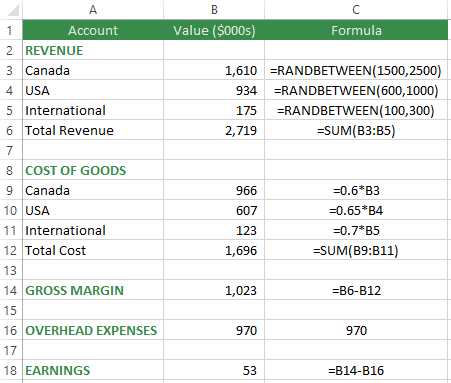
When data models are built in Excel, assumptions are usually made. For example, take a look at this simple income statement data model (values are in thousands of dollars) and the associated calculations.

Revenue by region is fixed, the Cost of Goods are a percentage of Revenue and Overhead Expenses are fixed.

This model represents a forecast of a company’s Earnings for next year. It is static, so the result is always $170,000.

If this is a best guess at a forecast then the next level is to understand the possible variability in the model’s assumptions and results. How sensitive are Earnings to changes in Revenue?

Random Numbers

Random numbers can be used to add uncertainty to the data model. Even though Canadian Revenue is forecasted at $2,000,000, the worst case scenario is $1,500,000 and the best case scenario is $2,500,000. To reflect this in the data model, a random number in this range can be used instead of hard-coding $2,000,000. There are two common ways to implement this uncertainty in Excel:

=RANDBETWEEN(1500,2500)
=1500+RAND()*1000

The RANDBETWEEN Function in Excel will randomly select a number within the range specified, including the lower and upper limits provided. Press the F9 key to trigger a recalculation of the Workbook.

The RAND() Function generates a random number between 0 and 1 (includes 0 but not 1). This value can be multiplied by 1,000 and added to 1,500 to generate a random number between 1,500 and 2,500.

USA and International revenue can also incorporate uncertainty in their values. USA revenue will range from $600,000 to $1,000,000. International revenue will range from $100,000 to $300,000.

Simulation: An Unorthodox Use Of Data Tables

Every time the F9 key is pressed, a recalculation of the Workbook will occur but the new scenario is not being captured. In order to capture the results from each scenario, you can use Visual Basic for Applications (VBA) code, but an easier way to capture the results is to use Data Tables.

Data tables are conventionally used to substitute a value from the first column in the table into a model parameter input cell in order to change the model and capture its result. However, in simulations, data tables can be used simply to trigger a recalculation of the same model and capture the result.

To set up the data table in this example, there is a formula in cell F2 (=B18) set to the model output: Earnings. Starting on the next row, one column to the left, fill down the number of scenarios desired. In this example I would like 10,000 scenarios. Next, highlight the top row and the rest of the table down to the last scenario. From the Excel Data ribbon, look in the Data Tools group and select What-If Analysis then Data Table.

Typically, when the Data Table dialog appears, the Column input cell (column of 10,000 values) is set to a cell in the data model where the numbers 1 to 10,000 will be placed before a recalculation, but in this case, all we want is a recalculation, so select a blank cell such as $S$17. Each of the 10,000 values will be placed in cell $S$17, forcing a recalculation, then then result at the top of the Data Table (cell F2) will be captured in each row below. Click OK to run 10,000 scenarios of the data model and capture each Earnings value.

Understanding The Distribution Of Model Results

In order to understand the results, first copy and paste the Data Table as values so they will not change on the next recalculation. Next, sort the Earnings from lowest to highest. With the sorted range selected, create a Line Chart to show how the simulation results are distributed. The chart shows that there are about 900 of 10,000 scenarios where Earnings are negative, which corresponds to a 9% chance of losing money based on the current model assumptions. If the target Earnings are $300,000, we can see that about 17% of the 10,000 scenarios yielded a value of $300,000 or greater.

These concepts are even more powerful with larger data models. Also, simulation can also use bell-shaped or other distributions instead of a simple RANDBETWEEN Function. Simulation is about understanding how sensitive results are to changes in assumptions. This allows the modeller to assign probabilities to the likelihood of scenarios and take action early to change the outcome.

If you are interested in learning more about Excel Data Model Simulation, let me show your organization how it can introduce uncertainty into its Excel models. If you need a data model, database solution or analytics training, please contact:

Email: scottjcuthbertson@gmail.com
LinkedIn: http://ca.linkedin.com/in/scottcuthbertson
Blog: http://theanalyticspro.blogspot.ca/

Scott Cuthbertson BBA

Scott is an Analytics Professional who has worked with over 100 clients in the retail and financial services industries. He has helped organizations improve their labour scheduling, inventory replenishment, performance management, organization design and pricing. He has been a practitioner of analytics since childhood, using data models to win Hockey Pools. His expertise lies in developing data models, reporting, algorithms and solutions for any organization that wants to use their data to improve decision making. He also teaches at the CMA Professional Development Institute.

© Scott Cuthbertson 2014 Blog: Words From The Analytics Pro

Tuesday, January 14, 2014

Ctrl+Shift+Enter - Welcome To The Wild World Of Excel Arrays

One of the most obscure and least documented features in Excel is also one of the most powerful. If you have not yet encountered array calculations in Excel, I’ll let you in on the secret. An array formula is one that performs multiple calculations in one cell. Here is a simple example:

In order to calculate the value of inventory, the Cost should be multiplied by the Units On-Hand for each Item. Once the four multiplications have taken place, the results should be summed.

A common approach to this calculation is to add a new column to perform the multiplications. The formula in cell D2 is =B2*C2, in cell D3 is =B3*C3, and so on.

After each row’s Cost Value is calculated, a SUM Function adding column D will total $97.00. This result was obtained in two steps and used five cells, one for each Item and one for the SUM. If there is more data, this approach will use more cells to calculate a result. The accumulation of enough of these intermediate calculations can bloat a data model to a size that is difficult to open or email.

An Array Formula can achieve the same result of $97.00 by performing this calculation in one step using one cell. The Array Formula is: =SUM(B2:B5*C2:C5)

Each of the four cells in column B is multiplied by the corresponding cell in column C. The four multiplications are then enclosed in a SUM Function to add the four results. The only problem is that after typing in this formula and pressing the Enter key, a #VALUE! error appears. Since this formula is an array calculation, it needs to be entered using a special combination of keys: Ctrl+Shift+Enter. Hold Ctrl and Shift down while pressing Enter, doing this will enclose the formula in curly brackets. This is Excel’s method of showing that it understands that an array operation is performed. The curly brackets are never typed in, they result from entering an array formula with Ctrl+Shift+Enter.

There is another Array solution for this calculation that does not require Ctrl+Shift+Enter, the SUMPRODUCT Function. You can see in the function ScreenTip that an array is expected. =SUMPRODUCT(B2:B5,C2:C5) and then Enter will multiply corresponding cells then add the results. Ctrl+Shift+Enter was required in the previous example because the SUM function is not expecting arrays to be multiplied inside.

This example is a simple introduction to the existence of array calculations. The real benefit of an array formula is in situations where there are thousands of Items. The array formula can be performed in one cell without the need for thousands of intermediate calculations. This results in smaller data models and can help avoid 30-60 Megabyte file sizes.

Also, array formulae open up amazing new possibilities…

Where is the MAXIF Function? Where is the MINIF Function?

A common gateway to the world of array calculations is when you want to retrieve the maximum value based on a condition, a MAXIF function. Even though Excel has provided functions for SUMIF, COUNTIF and even AVERAGEIF, there is no MAXIF. Here is an example to show how an array formula can simulate MAXIF until the day when Microsoft adds the MAXIF function to Excel.

This data set stores the sales value for each salesperson on each day through the year. Imagine the table starts in cell A1 and ends in cell C2000. What is the largest daily sales value for Tara? The solutions I see most often are:

1) Manually sort or filter the data to calculate the MAX Function for the “Tara” records. This is a good solution for a quick one-time calculation but is not ideal for calculating the MAX for each salesperson.

2) In column D, add an IF Function for each row to only display sales values where the salesperson is “Tara” then use the MAX Function on the new column. This solution is not much better than the first one.

3) Use a PivotTable to calculate the MAX value for Tara and the other salespeople. This is a good solution and has much more flexibility than the first two.

4) Use an array formula for maximum flexibility.

I prefer formula-based solutions because they automatically recalculate when cell inputs change. Here is the array formula to calculate Tara’s maximum daily sales (don’t forget Ctrl+Shift+Enter):

=MAX(IF($B$2:$B$2000=E2,$C$2:$C$2000,""))

IF($B$2:$B$2000=E2,$C$2:$C$2000,"") will perform 1,999 IF calculations, each comparing a value in column B to “Tara” in cell E2. Wherever the column B value is “Tara”, the corresponding value in column C is returned, otherwise the empty string “” is returned. Once all these IF calculations are finished, they are enclosed inside a MAX Function which will extract the largest value. The spreadsheet has been spared the use of 1,999 cells.


This formula can easily be copied and pasted downwards to the other salespeople. The formula can also be easily modified to determine the MIN, MEDIAN or QUARTILE of Tara’s sales values. Any summary function can be used to quickly understand the data.

One caution though, since almost 2,000 calculations are happening in one cell, the array formula takes a little longer to calculate than a simple formula, but only one cell was required. It is not advisable to take this array calculation and copy and paste it thousands of times, you will have wandered into the realm of databases at that point.

Knowing how to use arrays will take your data models to the next level of efficiency. Array calculations work in different versions of Excel and can help you create better data models. There are many more applications of these ideas, especially those simulating database functionality on a small scale in Excel.

If you are interested in learning more about Excel Array Calculations, let me show your organization how it can improve its Excel models. For any analytics training or analytical solutions, please contact:

Email: scottjcuthbertson@gmail.com
LinkedIn: http://ca.linkedin.com/in/scottcuthbertson
Blog: http://theanalyticspro.blogspot.ca/

Scott Cuthbertson BBA

Scott is an Analytics Professional who has worked with over 100 clients in the retail and financial services industries. He has helped organizations improve their labour scheduling, inventory replenishment, performance management, organization design and pricing. He has been a practitioner of analytics since childhood, using data models to win Hockey Pools. His expertise lies in developing data models, reporting, algorithms and solutions for any organization that wants to use their data to improve decision making. He also teaches at the CMA Professional Development Institute.

© Scott Cuthbertson 2014 Blog: Words From The Analytics Pro